
1. Introduction
What is Gemini AI?
It’s an artificial intelligence system created by Google that understands and responds to text, images, video, and audio.
It’s not just a chatbot; it’s a smart AI system that can: create photos, write content, assist with coding, and understand and respond to prompts.
Gemini AI’s strengths are its speed, accuracy, and creative outputs. That’s why it’s increasingly used by creators, bloggers, designers, and business owners.
2. Why is Gemini AI Photo Prompts important?
When you use Google Gemini to create photos, 80% of the output depends on your prompt. If the prompt is accurate, clear, and powerful, the result will be high-quality.
So, learning Gemini AI Photo Prompts is important because:
You can generate more realistic images.
A good gemini ai photo prompts tells your AI:
What to create, how to create it, what angle to take, what style to use, and what background to use.
3. Why is AI images generation trending today?
1. Zero Skill → High-Quality Outpu
2. Savings Both Time and Money
3. Superfast Era of Content Creation
4. Best for Business Branding
With AI, you can create images that are simply not possible in reality:
futuristic cities, magical scenes, hyper-realistic model shoots, cartoon versions, 3D rendered images
That’s why AI image generation is the fastest-growing trend in the digital world today.
4. What is a Gemini AI Photo Prompts ?
⭐ Simple Meaning of Gemini ai Photo Prompts
A Gemini ai photo prompts is a sentence you type to ask Gemini AI to create a photo. Gemini AI creates the photo according to your prompt.
Prompt is a way to tell Gemini AI what kind of photo you want.
It’s a command, such as:
“A girl sitting on a rooftop watching the sunset – realistic photo”
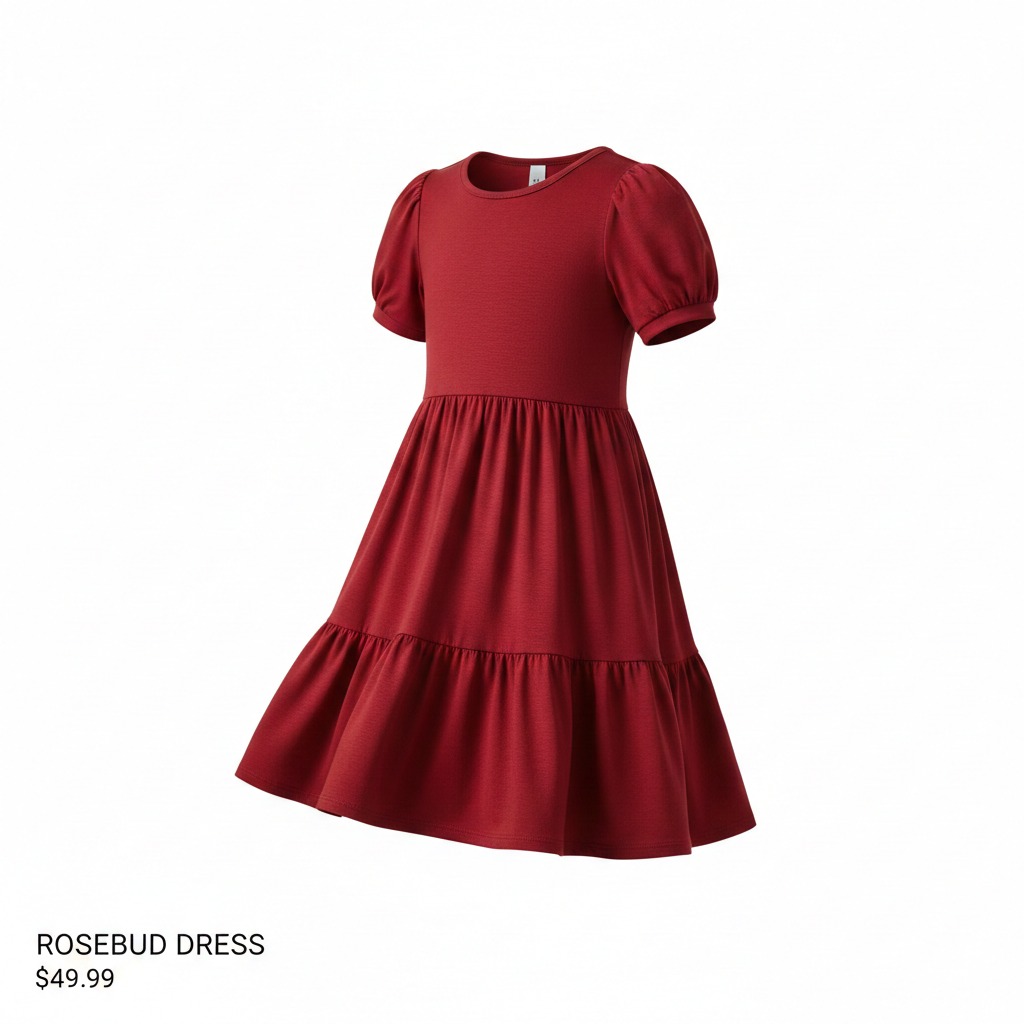
“Modern eCommerce product (red girl dress) photo – white background – soft lighting”As soon as you give this prompt, Gemini AI creates the photo according to the instructions.
Result – :
5. The Difference Between a Good Prompt and a Bad Prompt
1. Bad Prompt
❌ “Draw a photo of a cow.”
This is a very basic prompt, short and lacking in details.
Reasult-:
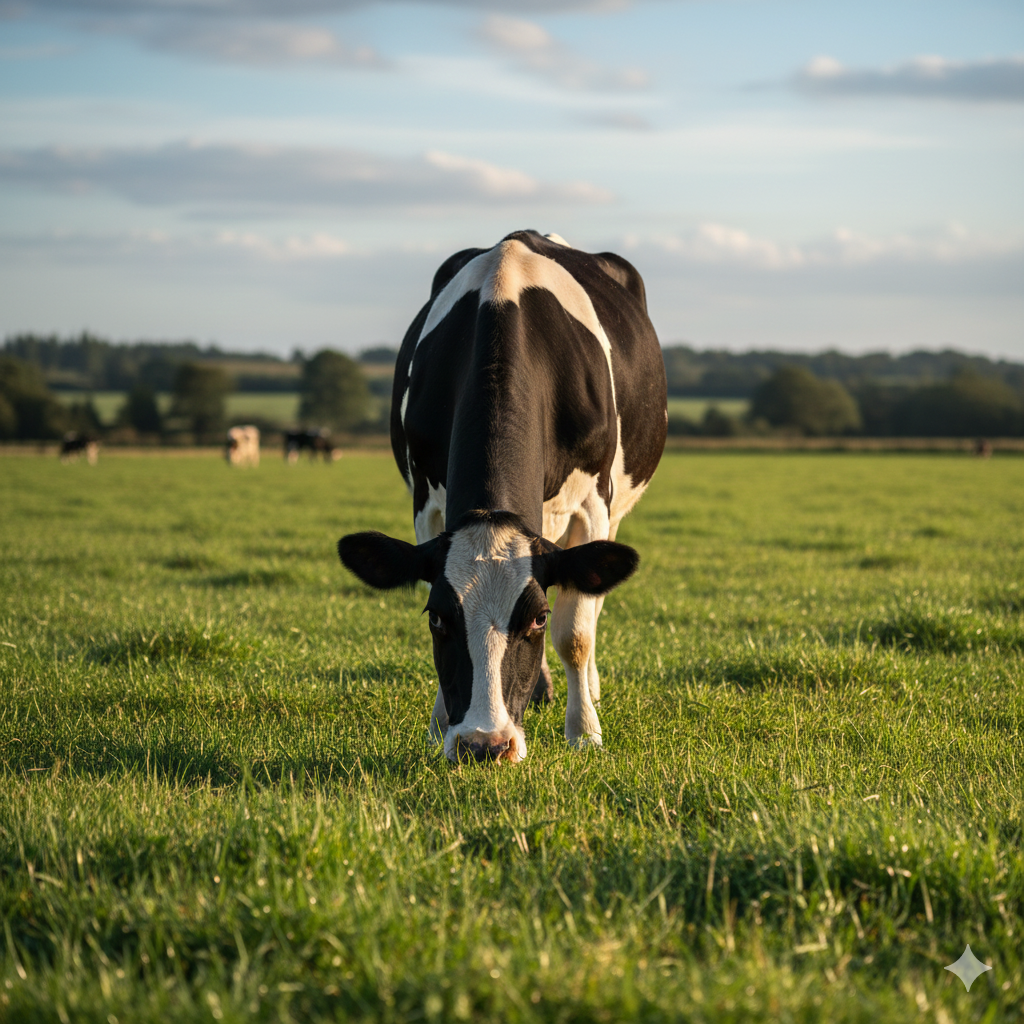
The AI can’t figure out what kind of cow it is. What background? What style? Therefore, it creates a low-quality image.
2. Good Prompt
✔ “A 25-year-old Indian girl smiling, wearing a pink dress, standing near a window, natural sunlight, ultra-realistic portrait photo.”
This prompt tells the AI:
Who? → Indian girl
Age? → 25 years
Expression? → Smiling
Dress? → Pink dress
Location? → Near a window
Lighting? → Natural sunlight
Style? → Ultra-realistic portrait
Reasult-:
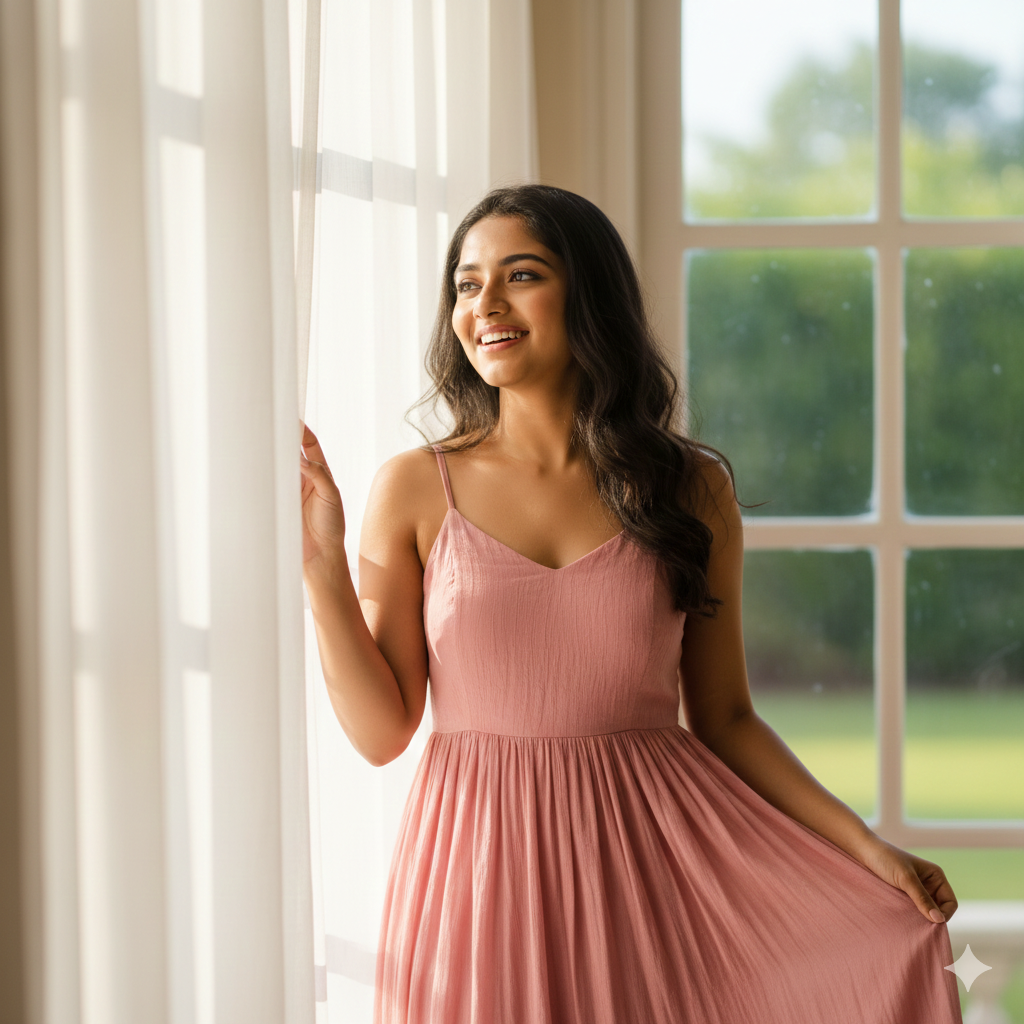
This is a detailed prompt. Now, Google Gemini will create the perfect image.
6. How does the Gemini AI Image Generator work?
Gemini AI is a text-to-image model. It understands your prompt and creates a fully realistic or creative image. This entire process is extremely intelligent.
⭐ 1. Text-to-Image Process (Process of creating an image from words)
Gemini AI works in three parts:
✔ Step 1: Reading your prompt
What you type, for example – “A modern eCommerce beauty product name is water bottle photo with white background and soft lighting”
The AI reads it word by word.
✔ Step 2: Understanding the meaning and details
The AI divides each keyword into categories:
Subject → “beauty product”
Background → “white background”
Lighting → “soft lighting”
Style → “modern eCommerce photo”
Then it analyzes what the image should contain.
✔ Step 3: Creating the Final Image
The AI uses its trained visual models to generate a final image, setting everything up according to your prompt.
7. How does the AI model understand details?
Gemini AI has been trained on millions of photos, videos, art styles, camera shots, and lighting patterns to understand Gemini AI photo prompts.
That’s why the AI automatically understands:
How a camera behaves in Portrait mode
What a studio background looks like
What natural sunlight looks like
How colors are used in a 3D cartoon style
What cinematic lighting is
When you type a prompt, the AI compares it to your prompt and generates the final image accordingly.
8. How do Image Style, Lighting, and Camera Type affect the image?
70% of the look of an AI-generated image depends on how you write the style, lighting, camera details, and background.
🎨 1. Image Style (The look changes completely)
Common styles: Realistic, 3D Render, Cartoon, Cinematic, Hyper-realistic, Watercolor, Vintage.
Example: “Realistic Indian man portrait” vs “Cartoon Indian man portrait” → Completely different output.
💡 2. Lighting (changes mood)
Soft light → smooth look
Harsh light → dramatic shadows
Golden hour → warm tone
Studio light → premium product look
Neon light → futuristic feel
Correct lighting = premium image
📸 3. Camera Type / Lens / Angle
DSLR shot → high-quality
Macro lens → close-up details
Wide-angle → big background
Top-angle → shot from above
Portrait mode → face-focused
Camera details = professional output
🌆 4. Background / Environment
White → eCommerce
Nature → natural
Studio → clean, premium
Office → corporate
The entire image changes as the background changes.
9. How to Write a Gemini AI Photo Prompts? (Step-by-Step Guide)
I’ve provided a practical, step-by-step guide below, with examples for you to experiment with.
✔ Step 1 — Define the Image Subject
First, describe what kind of photo and what you want. The more you define, the more output you’ll get.
Include: subject type, age (if relevant), gender, clothing, action/pose.
Examples:
“25-year-old Indian woman”
“Leather wallet on a wooden table”
“Young boy flying a kite”
✔ Step 2 — Select the Style
What visual style do you want—realistic, cinematic, 3D render, watercolor, cartoon, vintage, etc. Style changes the entire mood.
Examples:
“ultra-realistic portrait”
“minimalist eCommerce product photo”
“cyberpunk 3d render”
✔ Step 3 — Tell the background
By telling the background the image use-case is clear (eCommerce, social post, website banner). Specify white background, studio, beach, cityscape etc.
Examples:
“white background, studio shot”
“Beach sunset with soft waves”
“urban street at night”
✔ Step 4 — Lighting & Mood
Lighting determines the atmosphere of the photo — soft, dramatic, golden hour, neon, studio lights. There is also emotion in the mood (happy, moody, dramatic).
Examples:
“natural sunlight, golden hour, warm mood”
“Soft diffused studio lighting, clean and bright”
“dramatic low-key lighting, cinematic mood”
✔ Step 5 — Camera Type & Lens (optional)
If you want a professional look, enter camera/lens details — DSLR, 50mm, 85mm portrait lens, macro, wide-angle. It controls depth, Bokeh and perspective.
Examples:
“DSLR, 85mm lens, shallow depth of field”
“Macro shot, 50mm, extreme close-up”
“Wide-angle, aerial view”
✔ Step 6 — Detailing & Refinement
Add small details: colors, textures, poses, props, clothing details, facial expression, resolution, aspect ratio. Here you give final polish.
Examples:
“wearing a red silk saree, soft smile, natural skin texture, 4k high resolution, portrait aspect ratio 4:5”
“matte finish, shadow under product, no text, centered composition”
1o. Complete Prompt Structure (Formula)
[Subject], [Style], [Background], [Lighting and Mood], [Camera/Lens (Optional)], [Details and Output Specs]
🔥 Example — Complete Prompt
1) Ecommerce Product:
Gemini Ai photo Prompts EXAMPLE
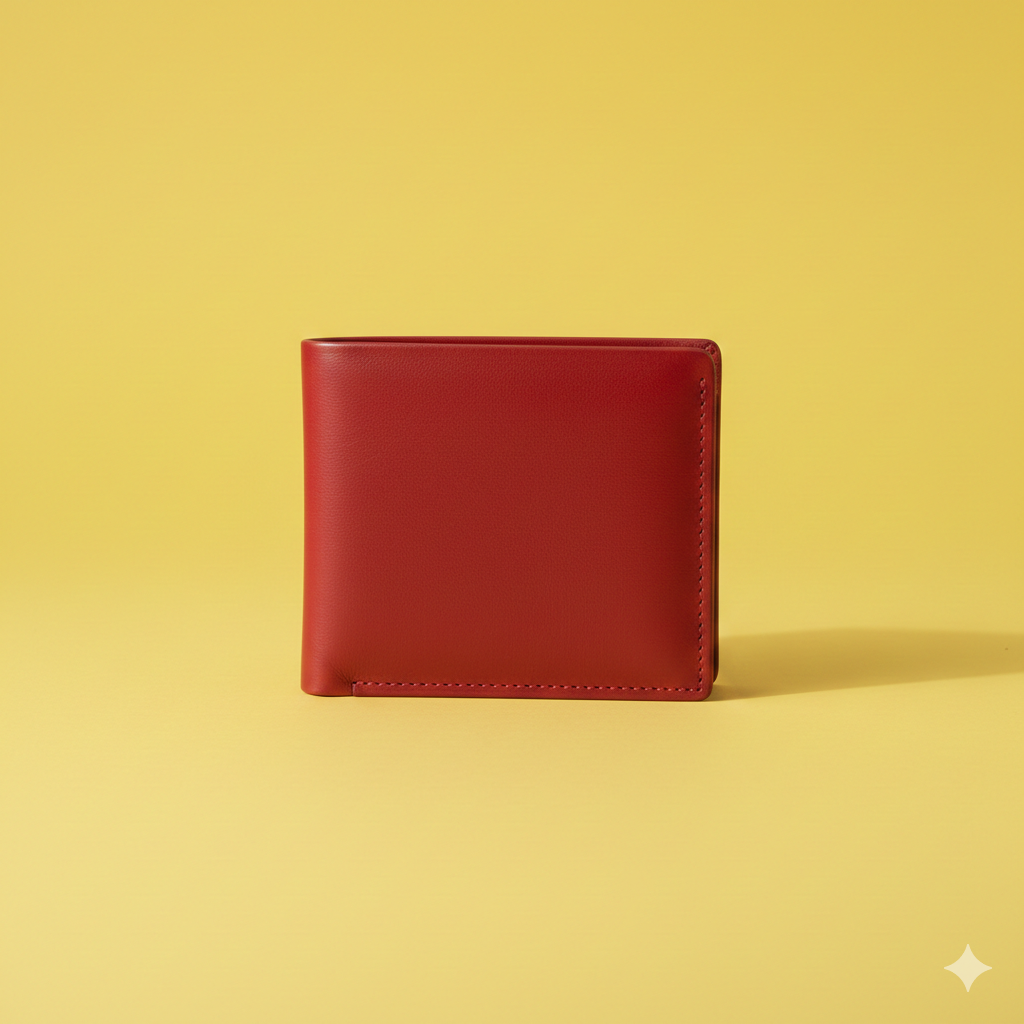
“Minimalist ecommerce product image of a red leather wallet, yellow background, soft studio lighting, top-down angle, crisp details, shadows below the product, 3000×3000, no text.” Create Image
Reasult -:
2) Portrait (Hyper-Realistic):
Gemini Ai photo Prompts EXAMPLE
“Ultra-realistic portrait of a 27-year-old Indian man, warm golden hour lighting from the right, slight smile, 85mm DSLR lens, shallow depth of field, detailed skin texture, cinematic color grading.” Create an Image
Reasult-:

3) Fantasy Scene:
Gemini Ai photo Prompts EXAMPLE
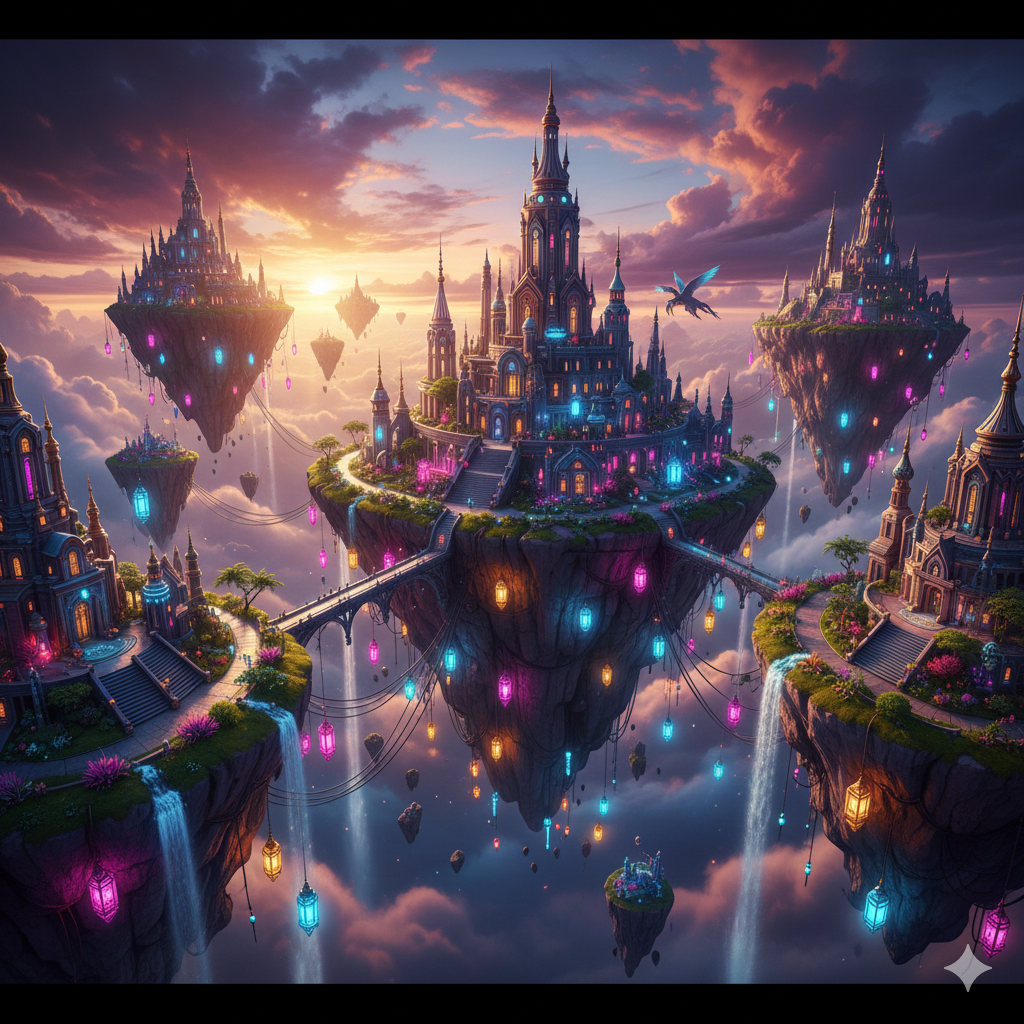
“Epic fantasy city at dawn, floating islands, neon lanterns, cinematic wide-angle, dramatic clouds, highly detailed 3D render, vibrant colors, 16:9.” Create an Image
Result-:
4) Thumbnail for YouTube:
Gemini Ai photo Prompts EXAMPLE
“Vibrant YouTube thumbnail — excited man pointing to phone, bold text space on right (leave blank), high-contrast lighting, studio background, energetic mood, 1280×720.”
Reasult – :

✅ Quick Tips (Dos and Don’ts)
Dos
Use commas to separate parts (better part)
Start with the most important information (subject + style).
Include the camera/lens only if you want a professional photographic look.
If you need a specific size, specify the resolution/aspect ratio.
Use adjectives (realistic, cinematic, soft) for better control.
Don’ts
Don’t be too vague: “nice photo.”
Don’t overuse different styles (e.g., “photorealistic watercolor”).
Don’t use words that don’t seem clear without context (e.g., “old look” — say “classic film, grainy”).
🧰 Prompt Checklist (Quickly review before submitting)
Is the subject clear?
Is the style defined?
Is the background set?
Is the lighting and mood defined? Is it?
Is the camera/lens included, if needed?
Is the necessary details (color, props, expressions) added?
Is the output size/aspect ratio specified, if needed?
11. Best Formula for Perfect Gemini AI Photo Prompts
Gemini AI photo prompts only produces high-quality images if your prompt is clear and structured.
So, you should follow a simple formula:
Best Formula (Ultimate Gemini ai photo Prompts Formula)
[Subject] + [Style] + [Camera] + [Lighting] + [Background] + [Details]
With this formula, you can create images in every category—portrait, product, creative, YouTube thumbnail, eCommerce photos, etc.
12. Conclusion
These days, creating photos with AI has become so easy. Gemini AI photo prompts has completely transformed the way photos are created. It has made it easy to create high-quality, professional, studio-level images. You no longer need an expensive DSLR, a model, or an expensive setup to create an image. You just need to enter a structure prompt and Gemini AI will create the image for you.